
App for Shopify stores

Courier prices, booking and tracking on every Shopify order
ParcelOps is a free Shopify app for online stores whose courier runs ParcelOps.
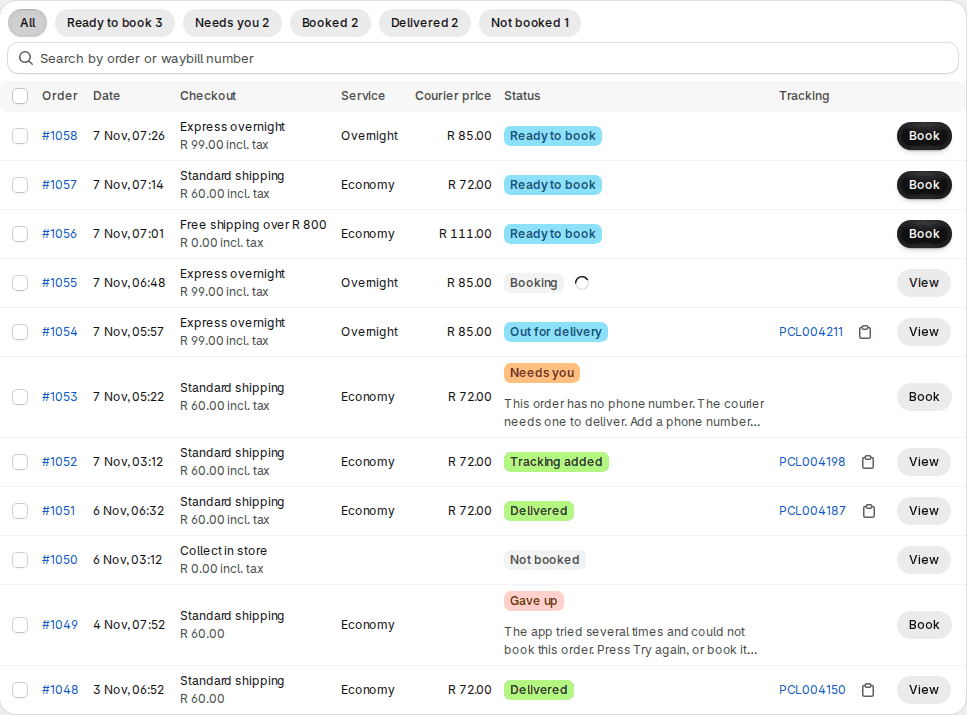
Every paid order shows your courier’s price for Economy, Overnight and the other services on your account, next to what the buyer paid. Choose the service on each order or let the checkout method choose it, then book in one click or automatically. The tracking goes onto the Shopify order, and labels and waybills print from Shopify.

How it works
From paid order to doorstep, without leaving Shopify
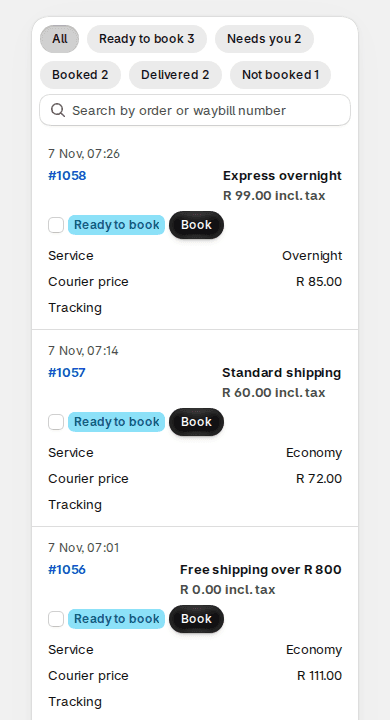
The app opens inside your Shopify admin, on a computer or in the Shopify app on your phone. The screens below are the app itself, filled with sample orders.
- 1When the order is paid
Priced, and waiting for you
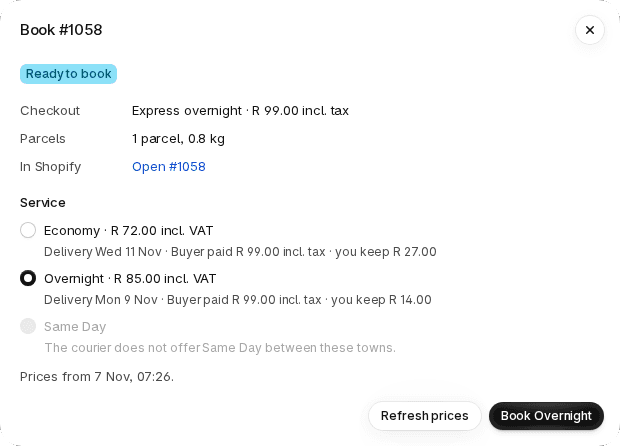
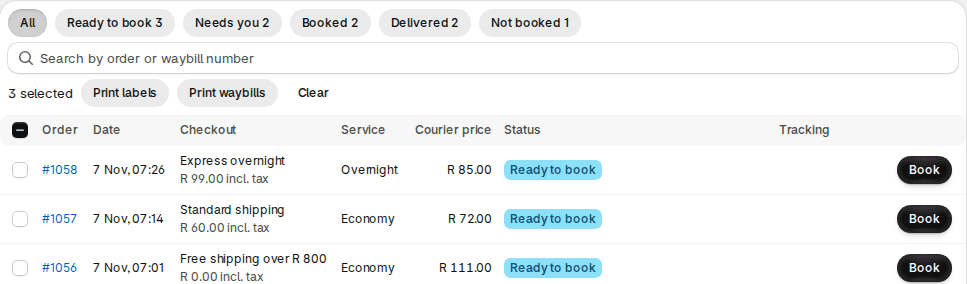
Each paid order arrives as Ready to book with your courier's price for every service on your account, the delivery day, and what the buyer paid for shipping beside it.
- 2When you press Book
Booked with the courier, one or many
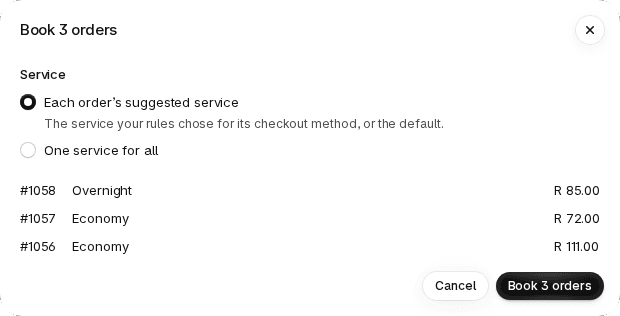
Book one order, or select several and book them together, each with its suggested service or one service for all. In automatic mode the app books every paid order itself.
- 3On its way
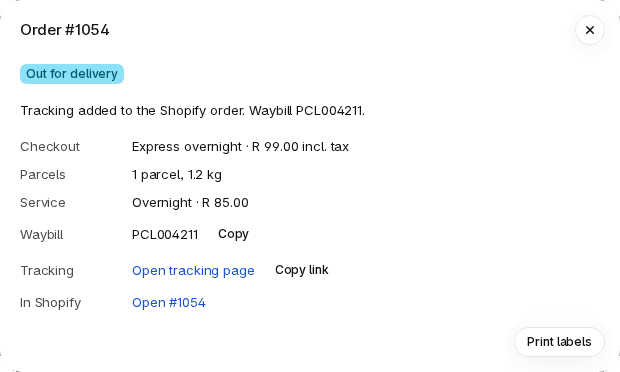
Tracking on the Shopify order
The courier's name, the waybill number and the tracking link go onto the Shopify order, and Shopify can email the buyer. Collected, out for delivery and delivered follow as they happen.
Your rules
Your checkout methods choose the service
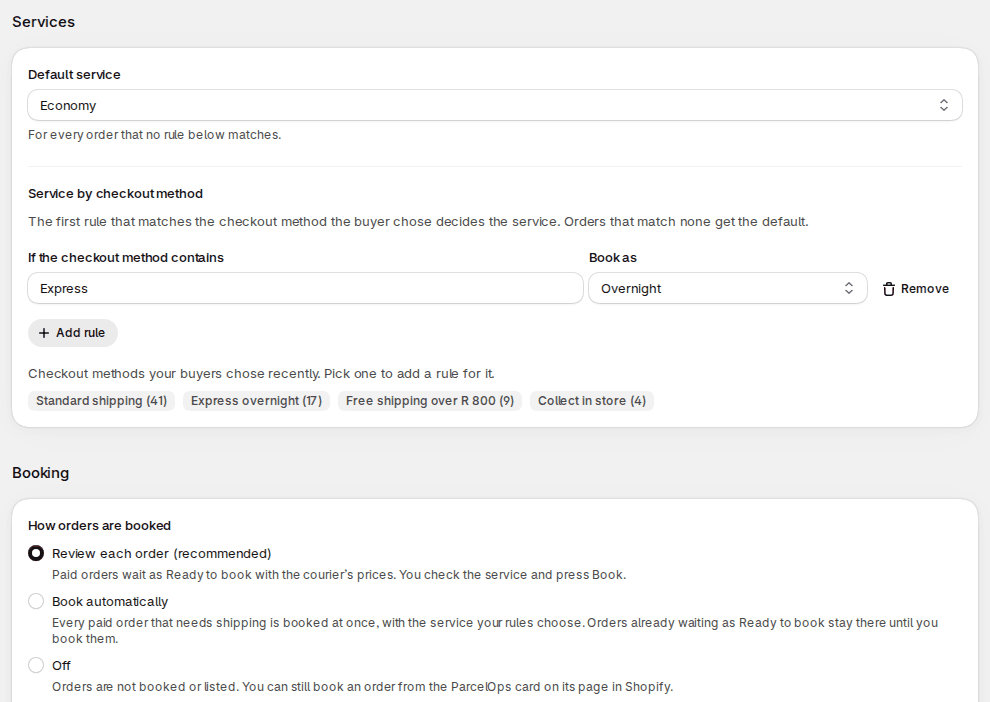
Your courier decides which services and prices your account gets. You decide which service each order is booked with, and whether you check it first.
- A default service for every order, such as Economy
- Rules by checkout method: if it contains Express, book as Overnight
- Review each order, book automatically, or switch booking off
- Book when an order is paid, or as soon as it is created
- Book only the shipping methods you list by name
- Shopify's shipping email with the tracking link, on or off
Labels and waybills
Print a day’s labels in one go
Select booked orders and print one PDF: a 100 x 150 mm label for each parcel, or A4 waybills. The same is on Shopify’s own screens. A ParcelOps card on the order page shows the prices and books the order, Book with ParcelOps works on orders selected in Shopify’s orders list, and the Print menu prints the labels.
Set up
Connected in seven steps
- 1
Create an API key
In your courier's customer portal, open Integrations, then API keys, then Create key. Name it Shopify and copy it straight away: it is shown only once.
- 2
Install the app
Install ParcelOps from the Shopify App Store and approve the access it asks for: reading orders and adding tracking.
- 3
Connect
In Shopify, open Apps, then ParcelOps, then Settings. Paste the key and press Connect. Your courier and account name appear.
- 4
Collection address and parcels
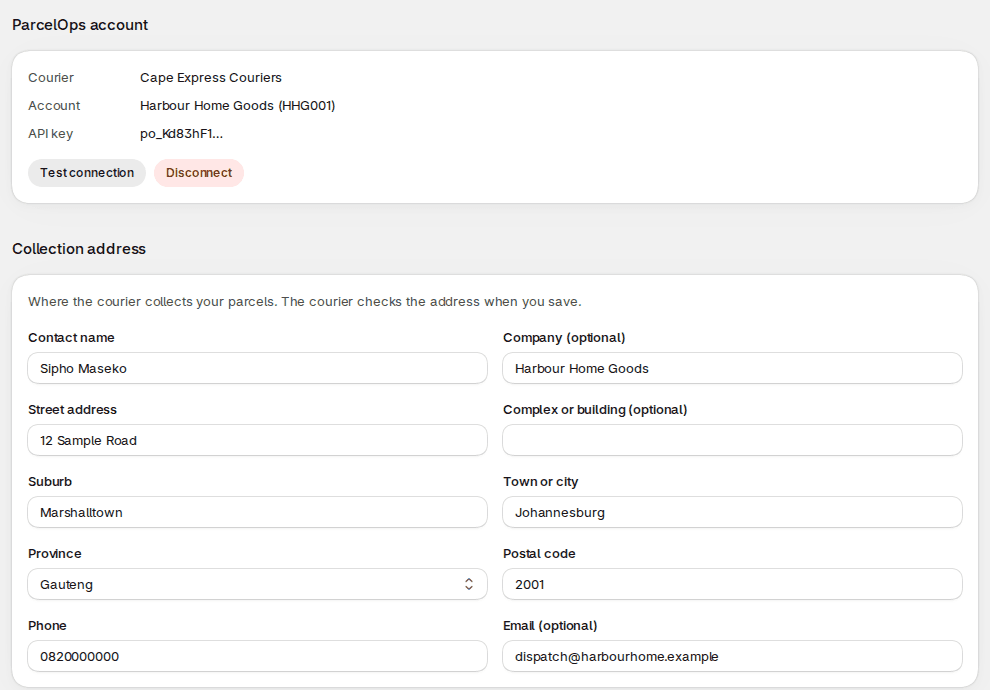
Add the address the courier collects from (the courier checks it when you save), and your usual parcel size and weight.
- 5
Services
Choose a default service, and add rules if you like: if the checkout method contains Overnight, book as Overnight.
- 6
How orders are booked
Choose Review each order (best to start with) or Book automatically.
- 7
Your first order
It appears as Ready to book with the courier's prices. Press Book, and the tracking goes onto the Shopify order. Select booked orders to print their labels.
If something goes wrong
Every waiting order says why
An order the app cannot book yet shows as Needs you, with the reason in plain words and a Try again button. These are the usual ones.
The order has no phone number
The courier needs one to deliver. Add it to the order's shipping address in Shopify and press Try again. Making the phone number required in Shopify's checkout settings avoids it.
The suburb is not recognised
The order is still booked, and the courier checks the address before collecting. If the address is wrong, sort it out with your courier.
The key stopped working
It was deleted or replaced in the customer portal. Create a new key and connect it in the app's settings.
Shopify has not allowed tracking
Press Allow tracking on the banner and approve the access. Until then each order's waybill and tracking link are in the app's list, ready to copy.
Shopify is holding the order
An order on hold or scheduled for later waits. Release it in Shopify, then press Try again.
Still stuck?
For a booking, your courier helps you directly. For the app itself, email hello@parcelops.co.za.
For courier companies
Let your Shopify customers book you from their orders
Online shops pick couriers that fit into the tools they already use. On ParcelOps, any customer of yours with a Shopify store can connect to you today, at no extra cost to you or to them.
Orders reach you as bookings
A shop's Shopify orders arrive in ParcelOps as ordinary bookings on its account, with the shop's order number on them. Nobody copies an address out of an email.
Your price is in front of them
The shop sees your price for each service, from the rate card you gave it, beside what its buyer paid. It chooses the service knowing what it costs.
The shop sets itself up
Your customer creates its own key in your customer portal and installs a free app. A key reaches that customer's own account and nothing else.
Parcels labelled before you arrive
Shops print your labels and A4 waybills from Shopify, so the driver collects parcels that are already marked and ready to scan.
The one-page set-up guide (PDF) carries no courier’s name, so you can send it to your shop customers as it is.
Questions
Shopify app questions
Does the app change the shipping rates my buyers see at checkout?+
No. Your checkout keeps the shipping rates you set up in Shopify. The app reads which shipping method the buyer chose and what they paid for it, uses the method to pick the courier service, and shows the amount next to the courier's price so you can see what you keep on each order.
What does the Shopify app cost?+
The app is free on the Shopify App Store and has no charge of its own. Your courier bills you for the deliveries booked on your account, at the rates it set for you, as it does for any other booking.
Which courier companies does it work with?+
Any courier company that runs ParcelOps. You need a customer account with that courier, and you create your own API key in its customer portal. The app books with the courier your key belongs to; it does not compare couriers or choose one for you.
Can I check an order before it is booked?+
Yes. Choose Review each order in the app's settings and paid orders wait as Ready to book, each with the courier's price for every service and the service your rules suggest. Change the service if you like and press Book, or select several orders and book them together. Switch to Book automatically once the rules suit you.
Can I print labels for many orders at once?+
Yes. Select booked orders and press Print labels for one 100 x 150 mm label for each parcel, or Print waybills for A4 waybills. Up to 50 orders come out as one PDF. Labels and waybills can also be printed from the Print menu on a Shopify order, or on orders selected in Shopify's own orders list.
What goes to the courier, and what does the app keep?+
For each order it books, the courier receives what it needs to deliver: the buyer's name, delivery address and phone number, and the buyer's email only if you switch that on. The app keeps no buyer details. It keeps the order number, its status, the service, the name of the checkout method, what the buyer paid for shipping, the courier's prices and the tracking. When you install it, Shopify asks you to allow it to read orders and add tracking.
What happens when I cancel an order in Shopify?+
An order still waiting as Ready to book is simply not booked. An order the courier already has is flagged in the app's list, but the courier booking is not cancelled for you, so cancel it with your courier.
What about pickup, local delivery and digital orders?+
They are left alone and shown as Not booked, because there is nothing for the courier to carry. If you only want certain shipping methods booked, list words from their names in the app's settings and every other order is left out. An order you book yourself is never left out.
Get started
Book your next Shopify order with your courier
Install the free app, paste the key from your courier’s customer portal, and your next paid order arrives priced and ready to book.
Shopify is a trademark of Shopify Inc. ParcelOps is not affiliated with or endorsed by Shopify.